Xcode / iOS
The image includes the Xcode build named on the plan. Use it to compile and open the simulator. Choose 16GB. 8GB is a poor fit.
APPLE SILICON
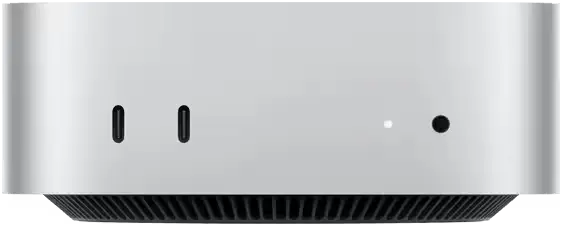
Rent an Apple silicon Mac mini. Real hardware, not a virtual machine. Built for iOS development, AI work, and everyday Mac tasks. Managed has no root. Dedicated does. Pay with USDT(TRC20).
Prices are on the purchase page · USDT(TRC20)
 M4 chip
16GB RAM
Fast response
M4 chip
16GB RAM
Fast response
What you get
The image includes the Xcode build named on the plan. Use it to compile and open the simulator. Choose 16GB. 8GB is a poor fit.
The preset is aimed at AI work on a Mac. 16GB is the practical choice. This page does not promise a specific model preinstalled.
For writing and running code in Visual Studio Code on a Mac. The general preset covers ordinary Mac tasks.
Register with an email code, or use Google. Bills, renewal, and cancellation stay in the same portal.
Plans
Most popular
From
35USDT
Get startedNo root. Pick this when Remote Desktop covers the build, the simulator, and day-to-day work. Weekly, monthly, quarterly, or yearly.
From
59USDT
Get startedRoot included. Pick this when the toolchain needs an administrator. Same billing periods as Standard.
Regions

Process
Open the portal. Register with an email code, or continue with Google.
Filter edition, preset, region, OS, hardware, memory, bandwidth, and SSH. Read the USDT total.
Copy the TRC20 address and the amount. A mismatch does not credit the order.
Status moves from provisioning to running. The dashboard then shows host, account, and remote port.
Windows: Remote Desktop Connection. Mac: Microsoft Remote Desktop. SSH only when the plan enables it.
FAQ
BaseCloud Mac is BaseCloud's remote Mac rental. After you sign in, you rent a Mac for iOS development, AI work, VS Code, and everyday Mac tasks. The machines are Apple hardware in regions across North America, Europe, Asia, and Australia.
Managed has no root access and fits Remote Desktop plus normal development. Dedicated has root access for builds and toolchains that need system privileges. You pick either one as a plan on the purchase page.
When the server is running, open the dashboard for the host, username, password, and remote port. On Windows, open Remote Desktop Connection and enter the IP and port. On a Mac, install Microsoft Remote Desktop, add a PC, and enter the same address. SSH is available only when the plan enables it, on port 22. The default Remote Desktop port is 6000.
The portal charges USDT(TRC20). Standard starts at 35 USDT, Pro starts at 59 USDT. The purchase page shows the exact amount. Periods are weekly, monthly, quarterly, or yearly. Sign in with an email verification code or a Google account.
Images include macOS Tahoe 26, macOS Sequoia 15.7, macOS Sonoma 14.8, and a macOS Golden Gate 27 preview. The Xcode build is printed on the plan, and the Dedicated Tahoe image can differ from Managed. Regions are near Los Angeles, Dallas, New York, South America via US East, London, Frankfurt, Mumbai, Singapore, Perth, and Sydney. Hardware includes Mac mini M4, M2, and M1 Apple silicon. Memory is 8GB or 16GB. Port speed is 100Mbps or 1Gbps.
Renewal bills have a payment deadline. If the bill is still unpaid at the deadline, the server is retired automatically. You can pay or cancel the subscription from the finance area.
Contact
The Mac portal also loads the same 24/7 chat widget as the main site.
Homepage
Open and top up AWS, Alibaba Cloud International, and Tencent Cloud International on the BaseCloud homepage.